
Manage sources
How to download, delete, and filter sources in your project
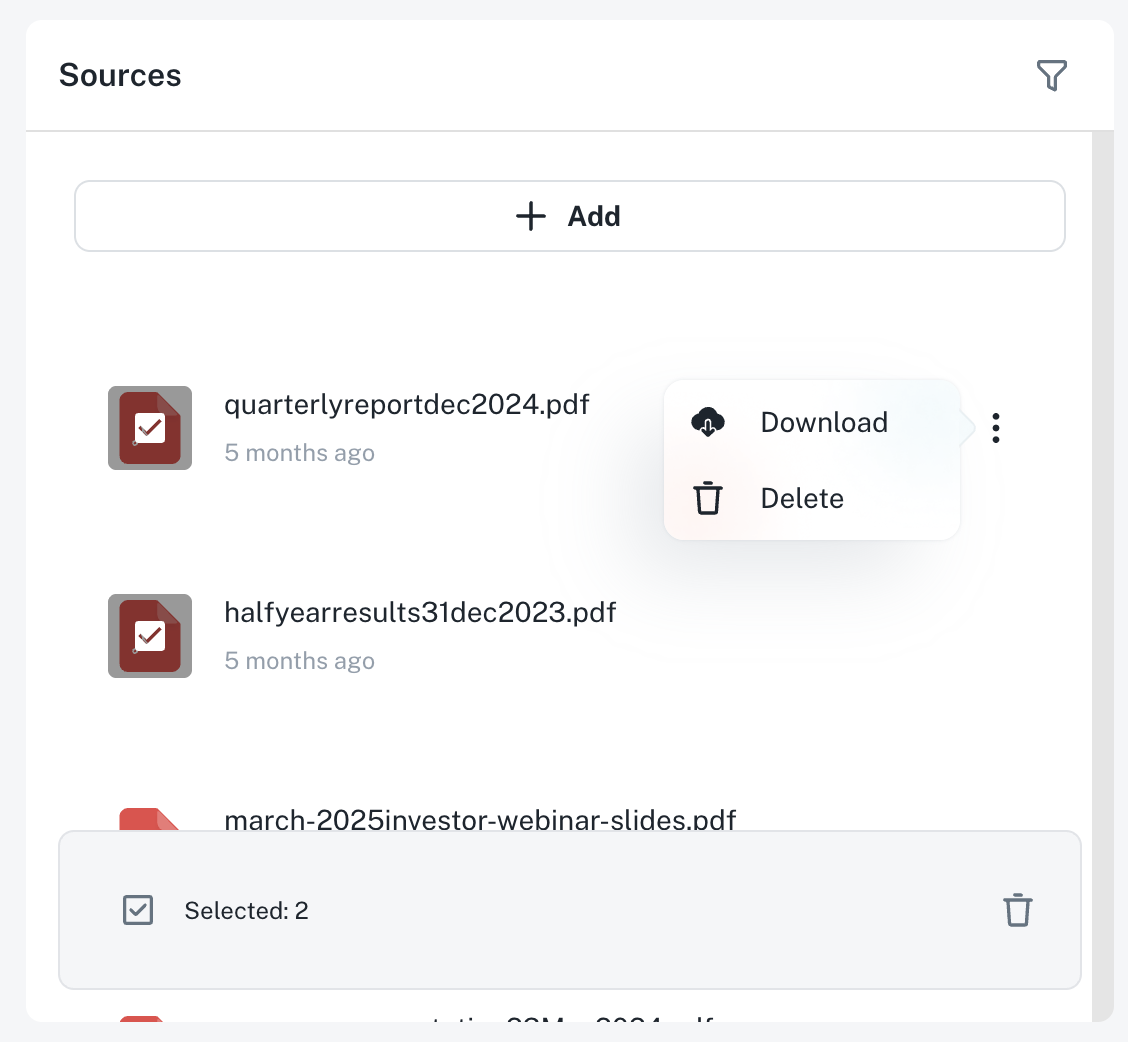
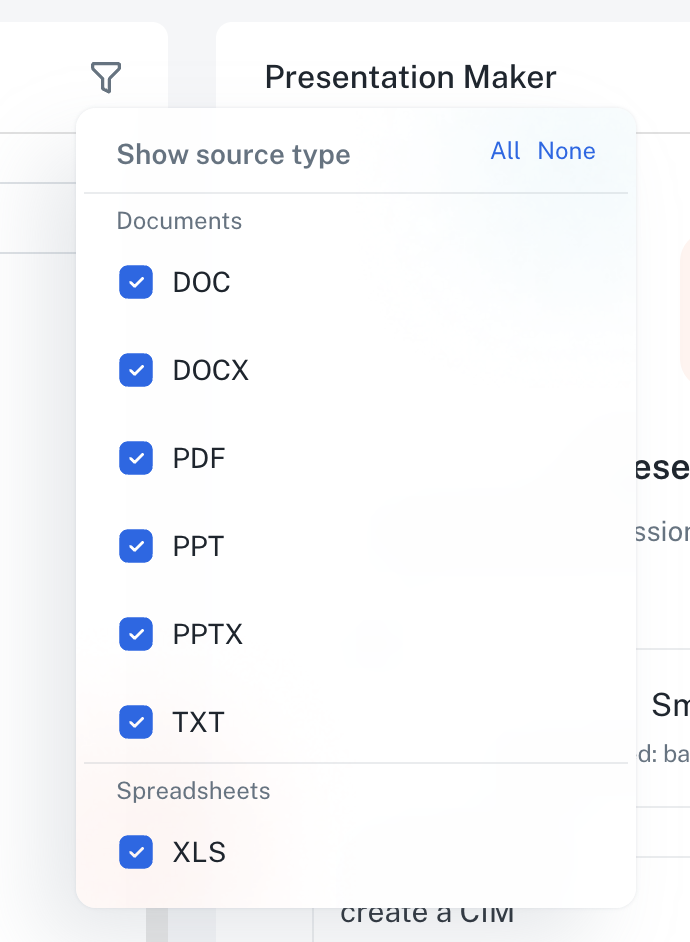
From the Sources panel in a project, you can download or delete a source. In the top right corner of the panel is a filter for selecting different file types.
Filter sources
Use the filter icon in the top right corner of the Sources panel to filter by source type. You can filter by documents (DOC, DOCX, PDF, PPT, PPTX, TXT), spreadsheets (XLS, XLSX), images (PNG, JPG, JPEG, WEBP), and web links. Click All to show all types, or None to clear your selection.
Download a source
To download a source file:
- Hover over the source you want to download
- Select the download icon
- The file will download to your device
This is useful when you need to access the original file outside of Deliverables AI.
Delete sources
Remove sources you no longer need:
- Select one or more sources using the checkboxes
- The selection bar appears at the bottom showing how many sources are selected
- Click the delete (trash) icon to remove them
- Confirm the deletion
Deleting a source removes it from your project. Future generations won't include content from deleted sources, but existing deliverables are not affected.
Source Info panel
Click on any source to open the Source Info panel. From here you can:
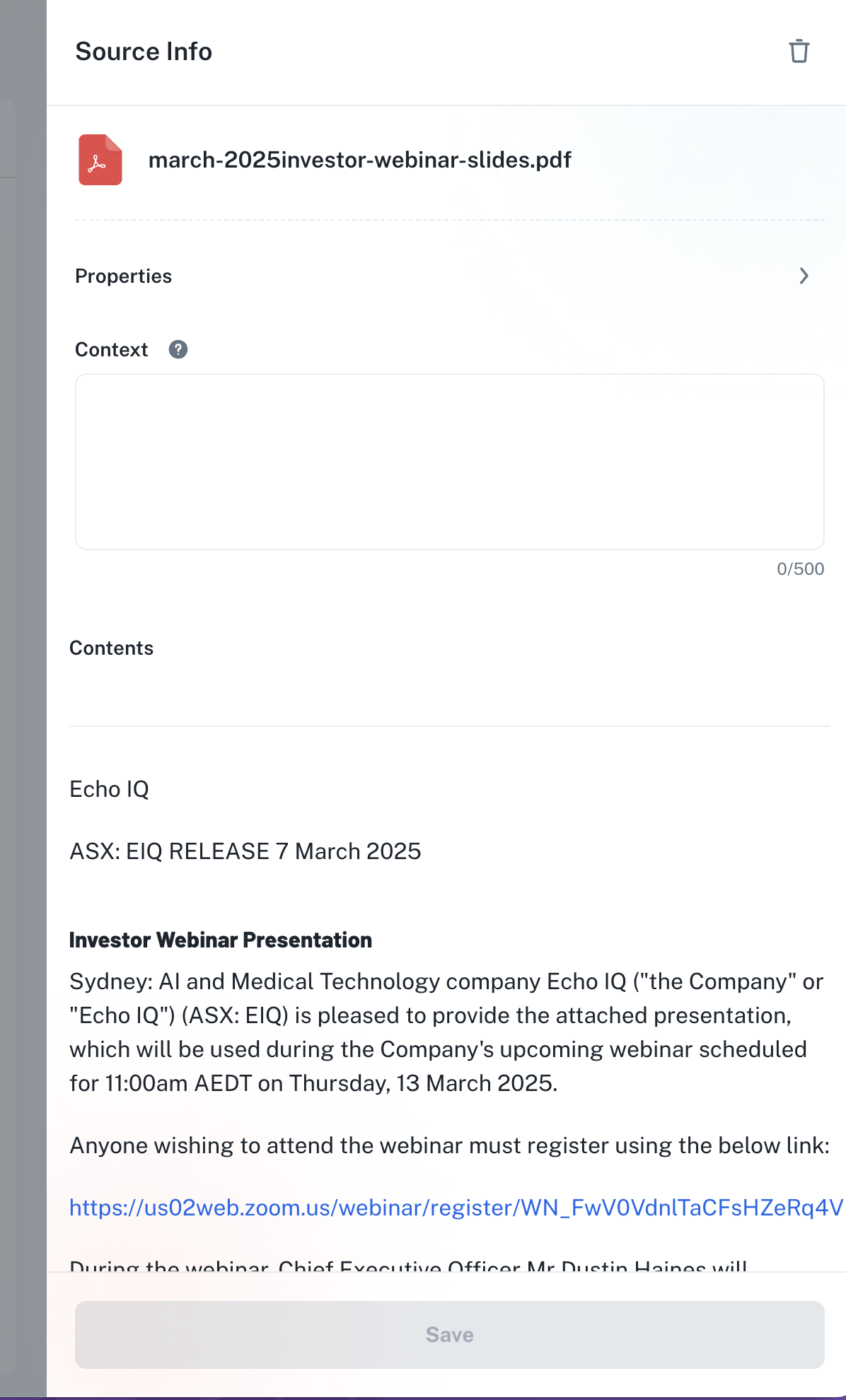
- Add context - Provide additional context about the source to help the AI better understand and use it
- View properties - See details like file size, when it was added, and file type
- View extracted content - See the markdown that has been extracted from the source file
The extracted markdown view is helpful for verifying that your source was processed correctly and understanding exactly what content is available to the AI.
Tips for managing sources
- Remove irrelevant sources - Delete sources that aren't relevant to avoid diluting results
- Use filters for large projects - When you have many sources, filter by type to find specific files quickly
- Bulk select - Use checkboxes to select multiple sources for batch deletion