
Citations
How citations work in your generated decks and how to verify sources
Every claim in your generated deck is backed by a citation. Citations link content back to your sources, making your presentations defensible and trustworthy.
How citations work
When Presentation Maker creates your deck:
- It analyzes all your sources
- It extracts relevant facts, data, and quotes
- It generates slides with content from those sources
- It adds citations to show where each piece of information came from
Citations appear as small numbered references on your slides, linking to the source document.
How citations appear in PowerPoint
Citations are stored as comments in your PowerPoint file. Each comment includes:
- Links to knowledge base sources - Direct references to documents in your project
- External web links - URLs to web pages used as sources
This approach keeps your slides clean while preserving full source traceability for your review.
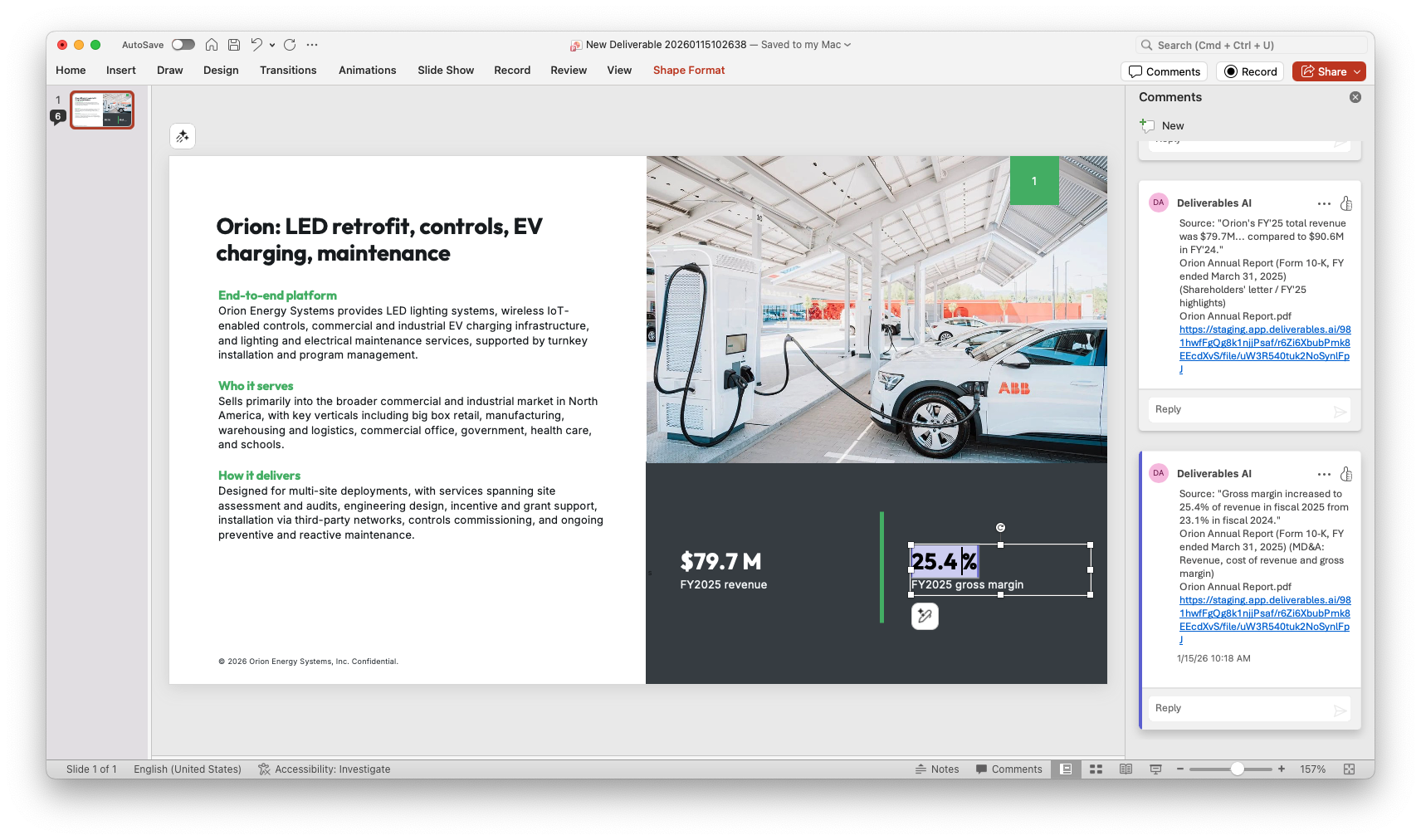
Viewing comments in PowerPoint
To see all citations in your downloaded deck:
On Windows (PowerPoint Desktop)
- Open your downloaded .pptx file
- Go to the Review tab in the ribbon
- Click Show Comments to display the comments pane
- Navigate through slides—comments appear in the right-hand panel
- Click any comment to see the full citation with clickable links
On Mac (PowerPoint Desktop)
- Open your downloaded .pptx file
- Go to the Review tab in the ribbon
- Click Comments Pane to toggle the comments panel
- Comments for each slide appear on the right side
- Click links within comments to open sources
In PowerPoint for Web
- Open your file in PowerPoint Online
- Click Comments in the top-right corner (speech bubble icon)
- The comments panel shows all citations for the current slide
- Use the navigation arrows to move between comments
Use keyboard shortcut Ctrl+Alt+M (Windows) or Cmd+Option+M (Mac) to quickly toggle the comments pane.
Removing citations before sharing
Before sending your deck to clients or external stakeholders, you may want to remove the citation comments. This keeps your presentation clean and professional while hiding your internal source references.
Delete all comments at once
In PowerPoint Desktop (Windows/Mac):
- Go to the Review tab
- Click the dropdown arrow next to Delete
- Select Delete All Comments in Presentation
- Save your file
In PowerPoint for Web:
- Open the comments panel
- Click the three-dot menu (⋯) at the top of the panel
- Select Delete all comments
Best practice workflow
- Review first - Use the comments to verify sources and check claims
- Make edits - Update any content that needs adjustment
- Save a copy - Keep a version with citations for your records
- Delete comments - Remove all comments from the client-facing version
- Final review - Double-check the clean version before sending
Once you delete comments, you cannot undo this action after saving. Always keep a copy of your deck with citations intact for future reference.
Why citations matter
Citations make your decks more credible and useful:
- Defensibility - Back up claims when stakeholders ask "where did this come from?"
- Verification - Quickly check the original source if you need more context
- Credibility - Show your audience that content is grounded in real data
- Compliance - Meet requirements for sourced materials in regulated industries
Not all AI tools handle citations the same way. See how our citation system compares to ChatGPT, Gamma, and others →
Fact-checking AI output
While our system is trained to be factual and cite sources accurately, AI-generated content should always be reviewed. Citations make this process faster—when you see a number or claim that surprises you, click the citation to verify it against the original source. This "trust but verify" approach ensures your final deliverable is accurate and defensible.
Source quality affects citation quality
The citations are only as good as your sources. For best results:
- Use authoritative sources - Company filings, research reports, official data
- Include primary sources - Original documents rather than summaries
- Add context - Meeting transcripts, expert interviews, detailed analyses
- Keep sources current - Recent data produces more relevant citations
What if a citation looks wrong?
If you spot an issue with a citation:
- Check the original source to verify the information
- Review whether the source was correctly uploaded/processed
- Consider whether the source contains conflicting information
- Re-generate with clearer prompt instructions if needed
If a slide makes a claim you can't verify, you can always edit or remove it in PowerPoint before sharing.