
Revise your presentations
Make targeted changes without regenerating from scratch
After your presentation is generated, you can request changes through revisions. Revisions apply targeted edits to your existing deck—typically completing in 1-2 minutes instead of the 15-30 minutes a full regeneration takes.
How revisions work
When you submit revision feedback:
- The AI copies your current deck — All your existing content is preserved
- It analyzes your feedback — Determines which slides need changes
- Makes targeted edits — Only modifies what you asked for
- Creates a new version — Your original stays intact
Each revision creates a new version of your presentation.
Revision feedback limit
You can submit up to 10,000 characters of revision instructions per request. This gives you room for detailed, multi-point feedback in a single submission.
How to request a revision
Once your presentation is complete:
- Find your deliverable in the list of deliverables
- Click the Ask for changes button on the deliverable
- In the revision dialog that opens, describe the changes you want
- Click Submit
- Wait 1-2 minutes for the revision to complete
- Download your updated deck
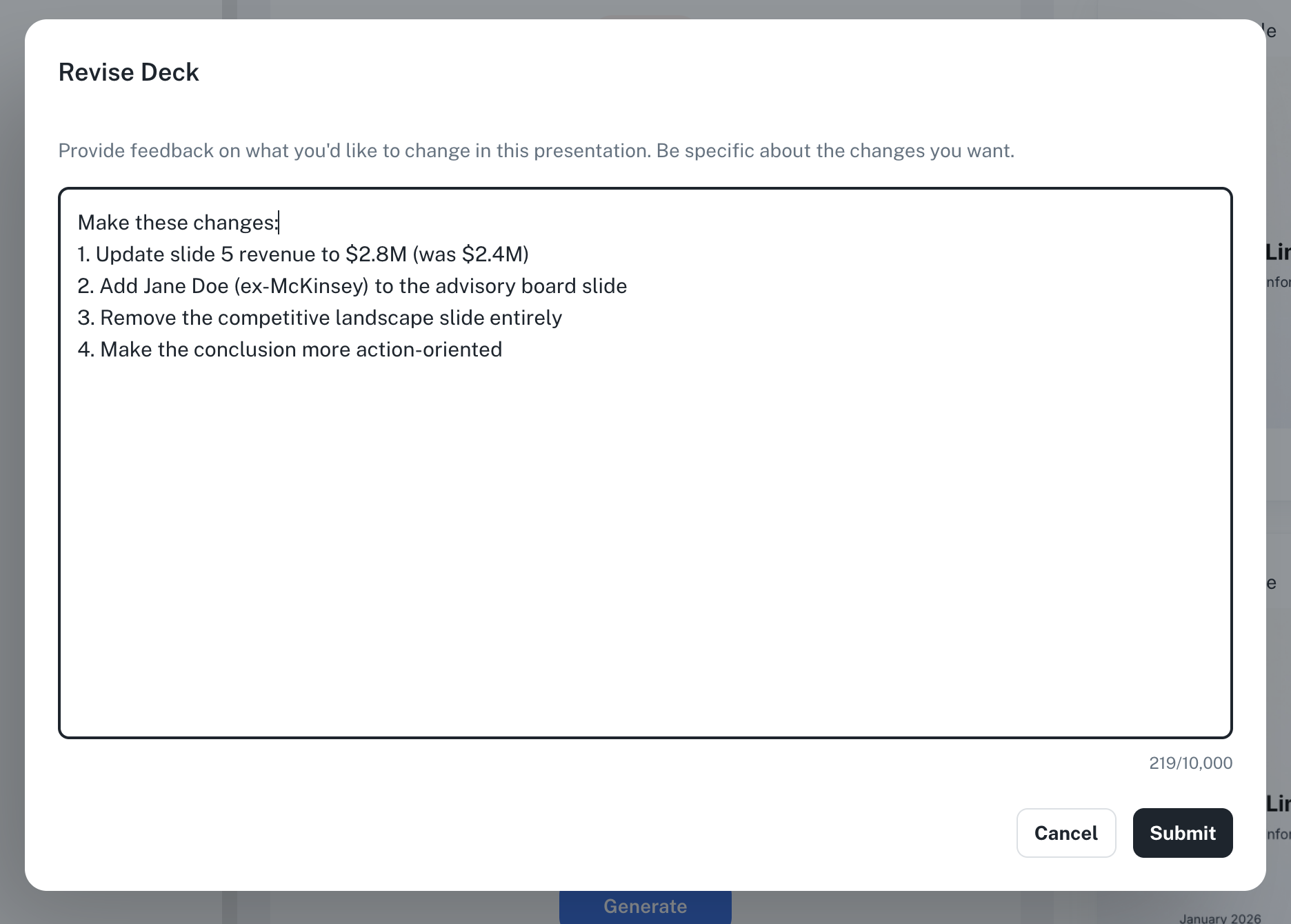
Be specific about which slides to change. "Update slide 5" works better than "make it better."
Writing effective revision requests
The more specific your feedback, the better your results.
Reference slides by number or title
On slide 3 (Market Size), update the TAM figure to $50B
Make the title slide more impactful—use "Revolutionizing Retail" as the headline
Describe exactly what to change
| Good | Vague |
|---|---|
| "Change the revenue figure on slide 12 to $50M" | "Fix the numbers" |
| "Add a bullet point about our AWS partnership" | "Add more content" |
| "Remove the competitive landscape slide" | "Make it shorter" |
Combine multiple changes in one request
You can request several changes at once:
Make these changes:
- Update slide 5 revenue to $2.8M (was $2.4M)
- Add Jane Doe (ex-McKinsey) to the advisory board slide
- Remove the competitive landscape slide entirely
- Make the conclusion more action-oriented
What revisions can do
Revisions work well for:
- ✅ Updating data — Change numbers, dates, names
- ✅ Adding content — New bullet points, slides, or sections
- ✅ Removing content — Delete slides or specific elements
- ✅ Rewording text — Adjust tone, fix phrasing
- ✅ Restructuring — Move or reorder slides
- ✅ Regenerating images and icons — Replace AI-generated visuals
Replacing images and icons
You can request new AI-generated images or icons if the originals don't fit your needs. Describe the slide and what you'd like instead:
On slide 4, replace the image with something more corporate—show a professional team in a modern office setting
Use a different icon for the "growth" section on slide 6—something that conveys upward momentum
Only AI-generated images and icons can be replaced through revisions. Images pulled from your source documents cannot be edited this way.
What requires regeneration
Some changes are better handled by generating a new presentation:
- ❌ Major structural overhauls — Completely different deck type or audience
- ❌ New source material — If you've uploaded new documents you want incorporated
- ❌ Different template — Revisions use the same template as the original
- ❌ Wholesale content replacement — If most slides need to change
- ❌ Arbitrary layout changes — Revisions operate within existing slide layouts
Layout limitations
Revisions work within the layouts already in your deck. Requests like "add a logo to the bottom left corner" or "add a text box below the chart" require the layout to support that placement. If you need elements in positions the current layout doesn't support, edit directly in PowerPoint or regenerate with different layout guidance.
If you find yourself requesting changes to more than half the slides, consider regenerating with an updated prompt instead.
Revision history
Every revision creates a completely new deliverable. Your original deck remains in the list of deliverables alongside any revised versions—you'll have access to both.
How versions work
When you revise a presentation:
- Original preserved — Your original deck stays exactly as it was
- New version created — The revision creates a separate, new deliverable
- Both downloadable — You can download either version at any time
- Mix and match — Take slides from different versions and combine them in PowerPoint
This means you can experiment freely with revisions. If you don't like the result, your original is still there.
Example
If you generate a CIM, then revise it twice, you'll have three deliverables in your project:
- Original CIM (v1)
- Revised CIM (v2)
- Revised CIM (v3)
All three remain accessible and downloadable.
Revision credits
Revisions consume credits based on what changes:
- Simple text edits — Lower cost (fewer AI operations)
- Adding new slides — Similar to generating new slides
- Complex changes — More AI reasoning = more credits
Revisions are generally cheaper than full regeneration because the AI only processes the slides that need changes, not the entire deck.
Tips for efficient revisions
- Review your deck first — Note all the changes you want before submitting
- Batch your requests — One revision with 5 changes is faster than 5 separate revisions
- Be specific — Slide numbers and exact content reduce back-and-forth
- Keep originals — Download your deck before major revisions in case you want to go back
Example revision requests
Update financial data
Update these figures:
- Slide 8: Change ARR from $2.4M to $3.1M
- Slide 8: Update customer count from 45 to 52
- Slide 12: Change 2024 projection to $8M (was $6M)
Add new content
Add a new slide after the Team slide showing our advisory board:
- John Smith, ex-Google VP of Engineering
- Jane Doe, ex-McKinsey Partner
- Bob Wilson, former CFO of Salesforce
Structural changes
Remove the competitive landscape slide (slide 7) and expand the product features section with more detail about our AI capabilities
Tone adjustments
Make the executive summary (slide 2) more confident and forward-looking. Replace cautious language like "we hope to" with assertive language like "we will"