
Add sources
How to upload files, add links, paste text, and use Deep Research
Sources are the data your AI agents work with. Upload documents, scrape web pages, paste text, or search the web to gather information for your project. Your content is automatically indexed and made available to agents.
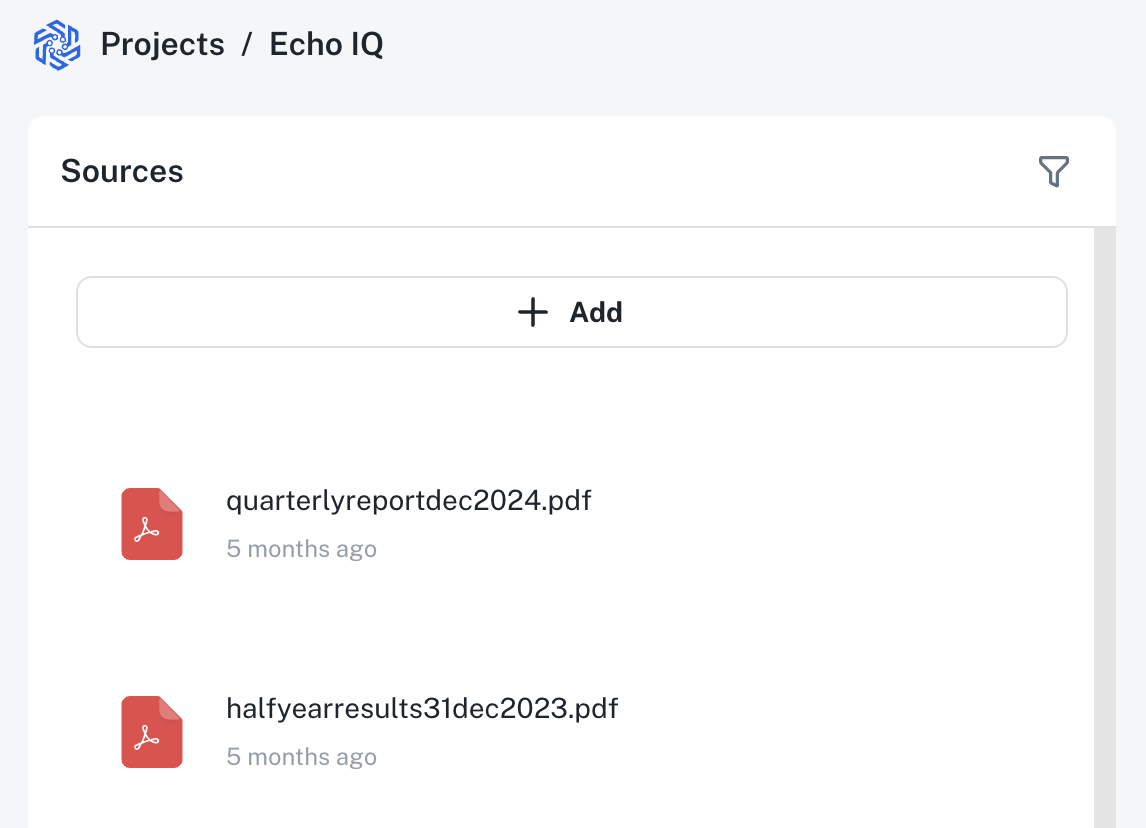
To add sources, select Add in the Sources panel.
Upload files
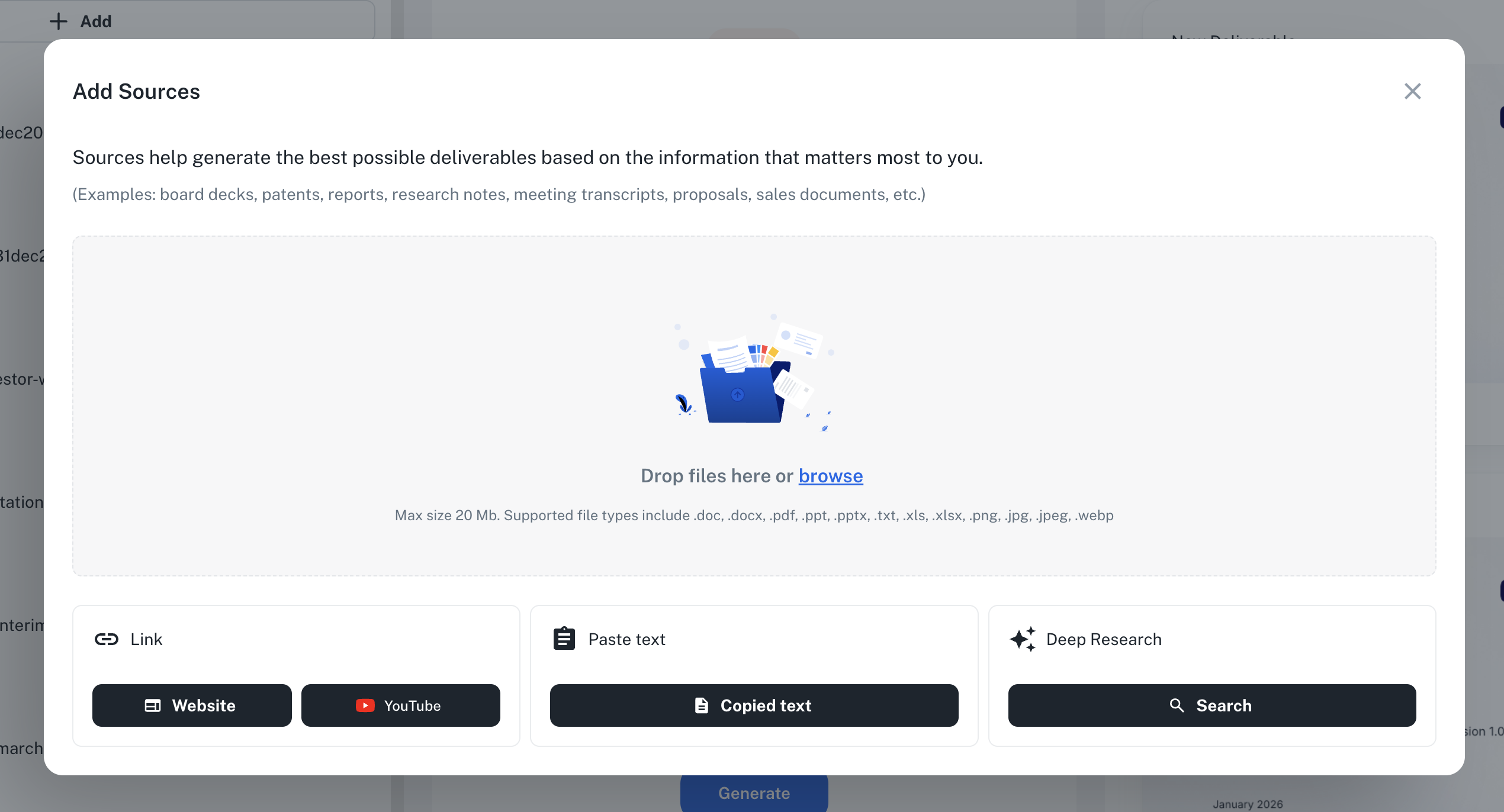
Drag and drop files into the upload area, or select browse to choose from your computer.
Supported file types
| Type | Extensions |
|---|---|
| Documents | .doc, .docx, .pdf, .txt |
| Spreadsheets | .xls, .xlsx |
| Presentations | .ppt, .pptx |
| Images | .png, .jpg, .jpeg, .webp |
Limits
- Max size: 20 MB per file
- Simultaneous uploads: Up to 30 files at once
Use descriptive filenames—agents see file names, so "Q4-Financial-Report.pdf" is better than "doc1.pdf".
Unsupported file types
Native application formats from accounting, ERP, and other specialized software are not supported. You'll need to export to a standard format first.
| Software | What to do |
|---|---|
| QuickBooks (.qbw, .qbb) | Export reports as Excel (.xlsx) or PDF |
| Xero | Export reports as Excel or PDF |
| Sage | Export to Excel or PDF |
| Other accounting software | Export financial statements as Excel, CSV, or PDF |
| Audio files (.mp3, .wav, .m4a) | Use a transcription tool, then upload the transcript. Details → |
In general, if your software has an "Export to Excel" or "Export to PDF" option, use that. The AI works best with standard office formats. For industry data providers, check the Connectors panel first — S&P Global, CB Insights, IBISWorld, and FactSet connect directly, so there is nothing to export. Where a provider is not connectable, export your query results as Excel or PDF and upload them here. More on third-party data providers →
Excel files for charts and tables
Excel files are especially valuable—the AI extracts data and creates real, editable charts directly from your spreadsheets.
Best practices for Excel sources:
- Clear column headers — Help the AI understand what each column represents
- Labeled data ranges — Name your tables or use clear sheet names like "Revenue by Year"
- Multiple sheets — The AI searches across all tabs, so include all relevant data
- Financial models — Upload your models as-is; the AI finds the key metrics
When you upload an Excel file, the AI can:
- Create bar, column, line, and pie charts from your data
- Build tables with proper formatting
- Extract specific figures for text content
- Cite the source spreadsheet in the final deck
See Charts & tables for more details on how structured data becomes visualizations.
Add a website
- Select Add in the Sources panel
- Under Link, select Website
- Paste the URL you want to scrape
- Select Submit
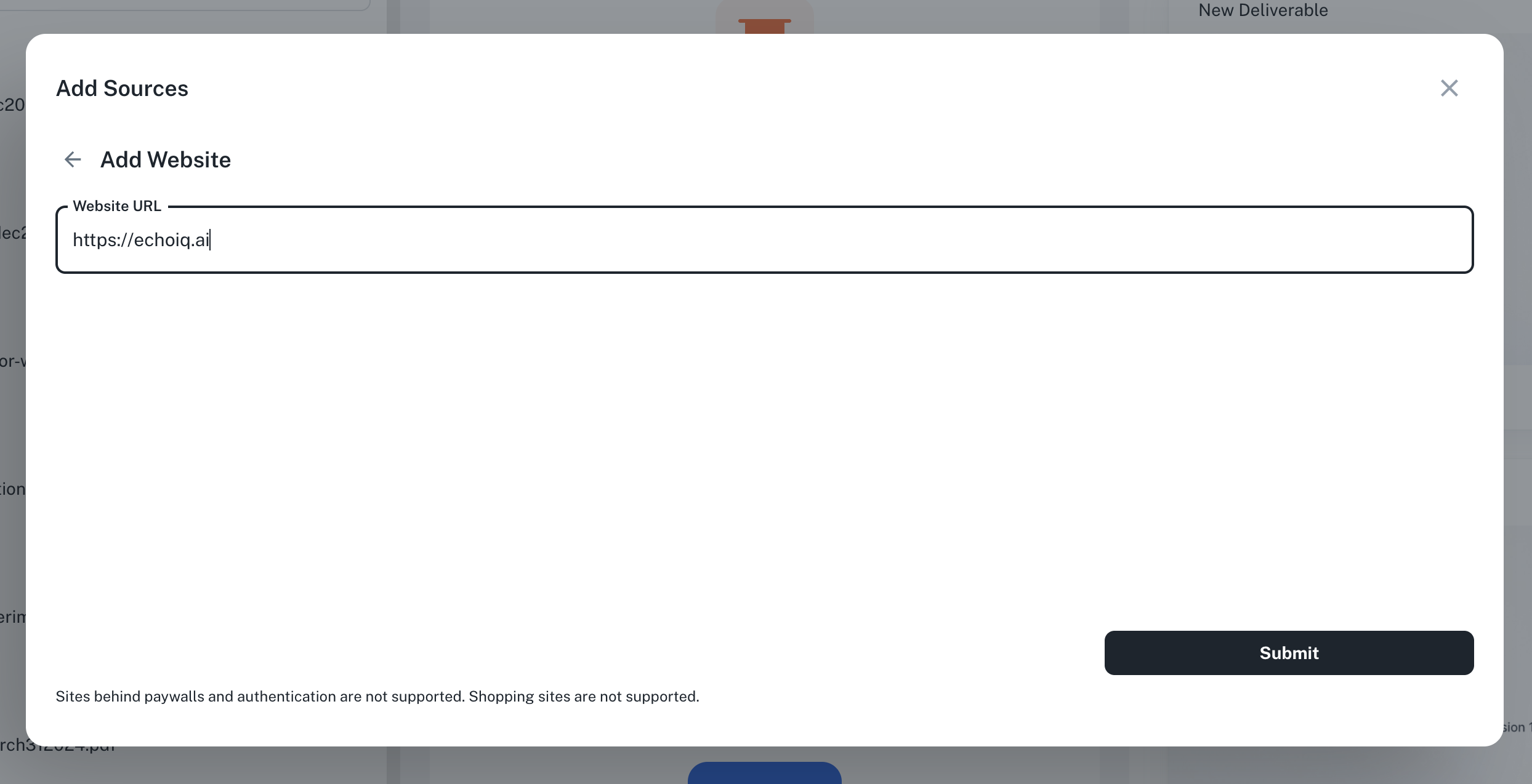
The platform fetches the page content and adds it to your sources.
Automatic branding extraction
By default, the system automatically extracts branding information:
- Logo — Company logos are pulled from the site and can be used in your presentations
- Brand colors — The color palette is detected and can be applied to your deck theme
- Company background — History, mission statements, and other company information become available as sources
This means you can create a professionally-branded CIM or pitch deck without manually gathering brand assets. Just add the company's website as a source or include their domain in your prompt.
Scrape entire websites
You can scrape up to 150 pages from a single website. When you enter a URL, choose:
- Single page - Just the URL you entered
- Full site - Crawl and scrape multiple pages from the same domain
This is useful for company websites, documentation sites, news archives, and research publications.
Some websites block automated scraping. If a page fails to load, try a different source or upload the content manually.
Add a YouTube video
- Select Add in the Sources panel
- Under Link, select YouTube
- Paste the YouTube video URL
- Select Submit
The platform extracts the video transcript and adds it to your sources.
Paste text
- Select Add in the Sources panel
- Under Paste text, select Copied text
- Paste your content into the text field
- Select Submit
This is useful for content that's hard to upload or scrape, like text from emails, chat messages, or applications that don't export well.
Use pasted text for reusable context
Paste frequently-used information into sources once instead of repeating it in every prompt:
- Company background — History, mission, key milestones
- Team bios — Founders, leadership, advisory board
- Key metrics — Revenue, customers, growth rates
- Product details — Features, differentiators, use cases
Content in sources is citable (the AI can reference it properly) and reusable across all generations in your project. See Prompt vs. sources for guidance on what belongs where.
Meeting transcripts and notes
Meeting transcripts are excellent sources—they capture details that people say in conversations that might not appear in formal documents. If you use meeting recording software (Zoom, Teams, Otter, etc.), upload the transcript directly.
- Transcripts — Upload the full transcript from your meeting recording software
- Scanned notes — Handwritten notes can be scanned as PDF and uploaded
- Meeting summaries — Copy and paste key points from meeting notes
Kickoff meeting transcripts are particularly valuable for CIMs—they often contain nuances about the business, growth plans, and founder motivations that aren't captured in formal documents.
Deep Research
Deep Research uses AI-powered web search to automatically find and add relevant information to your project. It's like having a research assistant who searches the web, evaluates sources, and compiles the most relevant content for your deliverable.
How it works
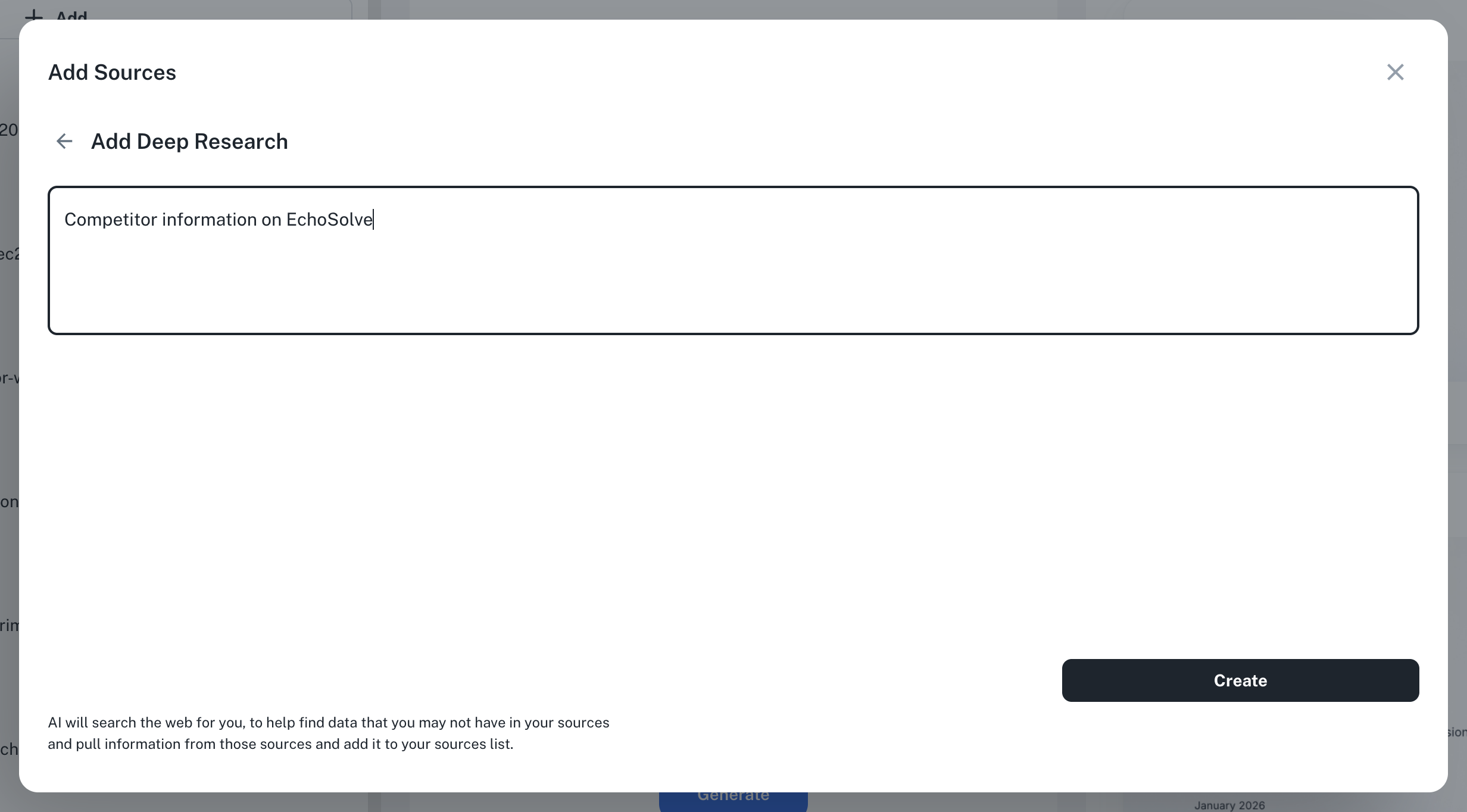
- Select Add in the Sources panel
- Under Deep Research, select Search
- Describe what information you need
- The AI searches dozens of sources, evaluates relevance, and adds the best results to your project
The AI typically works for 3-5 minutes during Deep Research, searching and evaluating dozens of sources. You'll see a progress indicator while it's running.
When to use Deep Research
Use Deep Research when you need information you don't already have:
| Good for | Examples |
|---|---|
| Competitor intelligence | Company details, recent news, product offerings, funding history |
| Market data | Industry trends, market size, growth rates, analyst reports |
| Background research | Context that isn't in your uploaded files |
| Recent developments | Latest news, earnings, announcements |
| Public company data | Financials, SEC filings, investor presentations |
Deep Research vs. manual sources
| Use Deep Research when... | Upload manually when... |
|---|---|
| You need publicly available information | You have proprietary or internal documents |
| You want broad coverage quickly | You need specific documents cited exactly |
| You're researching competitors or markets | You have confidential data that shouldn't be searched |
| You want recent news and developments | You need historical documents from your files |
Be specific in your search requests. "Find recent news about Acme Corp's Q4 2024 earnings and analyst reactions" works better than "find information about Acme Corp".
Limitations
- Deep Research only finds publicly available information—it can't access paywalled content, private databases, or internal documents
- Results depend on what's indexed and available on the web
- Very recent news (last 24-48 hours) may not appear immediately
Managing results
After the search completes, review the sources that were added and delete any that aren't relevant. You can run additional searches if you need more information—each search adds to your existing sources.
External deep research reports
For comprehensive industry research, consider generating a deep research report from tools like ChatGPT, Perplexity, Gemini, or Claude and uploading it as a source. These external reports provide thorough coverage that complements your internal documents.
When to use external reports
| Good for | Examples |
|---|---|
| Industry trends | M&A activity, market dynamics, regulatory changes |
| Competitor analysis | Detailed competitive landscape research |
| Market sizing | TAM/SAM/SOM analysis with supporting data |
| Sector overviews | Quarterly or annual market updates |
Market overview workflow
To create a market overview or industry report quickly:
- Run deep research reports on multiple AI tools (ChatGPT, Gemini, Claude)
- Download all the reports
- Upload them to your project as sources
- Prompt Presentation Maker: "Create a 20-page market overview for [industry] in Q1 2026"
The system synthesizes all the research into a polished deck with proper citations.
External deep research reports can take 15-20 minutes to generate but provide comprehensive coverage. Running reports on multiple AI tools gives you broader perspective and more source material to work with.
Data rooms and VDRs
Deliverables AI does not connect to VDRs or data rooms today — a Datasite connector is tagged soon in the Connectors panel but isn't live yet. Opt-in connectors do exist for other tools (Slack, Google Drive, your CRM, market-data providers), so until a data-room connector ships, use the upload workflow below.
The recommended workflow:
- Build a local folder for your project with the relevant deal materials
- Drag and drop those files into Deliverables AI
- When you're done, your data stays in your isolated workspace and nowhere else
This approach keeps you in full control of what data enters the system. You decide exactly which files to share, and nothing is synced or pulled automatically. Learn more about our security practices → | Where Deliverables fits in your workflow →
How sources work
When you add sources to a project:
- Processing - The platform extracts text, data, and images from your content
- Indexing - Content is indexed and made searchable
- Available to agents - All agents in your project can access and cite your sources
- Citations included - When agents create deliverables, they cite your sources automatically
The AI typically works for 2-5 minutes to process and index your files. Very large or complex file sets may require up to 20 minutes of processing.
Tips for large uploads
If you're uploading many files (such as an entire data room), keep these tips in mind:
- Upload in batches — For 50+ files, upload in smaller batches rather than all at once to avoid bottlenecks
- Be selective — Prioritize the most relevant documents rather than dumping everything; more focused sources often produce better results
- Expect longer indexing — The AI works longer on financial models and complex spreadsheets than on simple documents
- Isolate problem files — If indexing stalls, try uploading files one at a time to identify which file is causing delays
You don't need to upload every file from a data room. Focus on the documents most relevant to your deliverable—management presentations, financial statements, customer lists, and key contracts typically provide the best source material.
Next steps
Create your first deck
Step-by-step walkthrough from creating a project to downloading your finished deck
Where Deliverables fits in your AI stack
How Deliverables AI works alongside other tools in an M&A, PE, or advisory workflow
Prompting guide
How to write effective prompts that produce better presentations